HELP & DOCUMENTATION
Get ready before guests arrive.
Use this guide to prepare the software, hardware and delivery path. If a live event is near, run the exact setup from start to finish.
QUICK START
Your first event
A practical route through the desktop app.
Connect to the internet, then create your Free event without signing in.
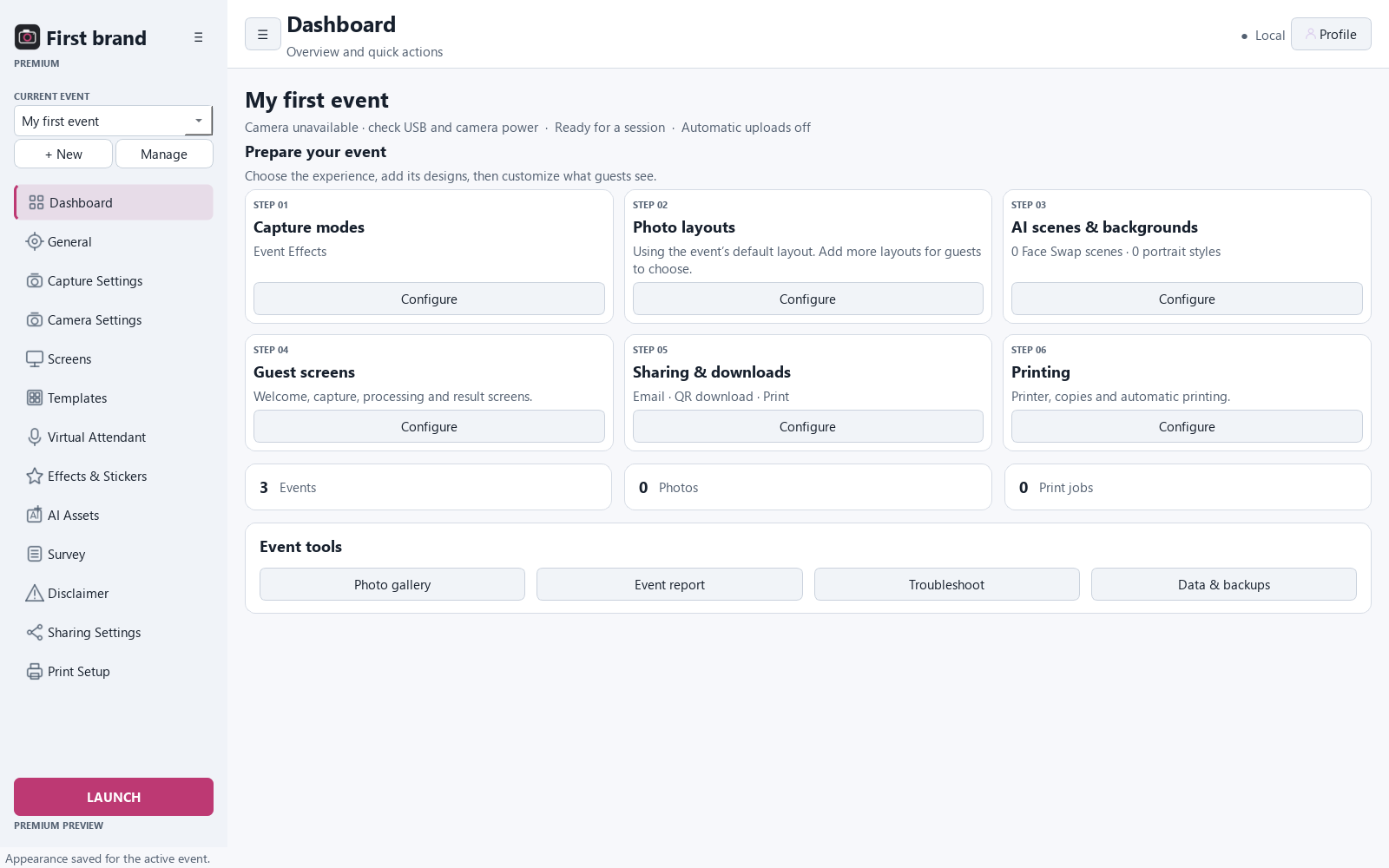
Choose Classic Photo and set the camera source.
Capture a sample photo and inspect the locally saved result.
With Premium, prepare layouts and guest screens for the event.
Test Free printer copies, then each Premium sharing channel you use.
Back up event media and keep a recovery plan on site.
FAQ
Common questions
Straight answers for event preparation.
Does Neo Booth Free need internet?
Yes. Free checks the daily session and print limits online before each use. Photos are saved on the booth computer. Cloud upload, guest email and remote galleries require separate configuration.
Can I use any DSLR or mirrorless camera?
No universal compatibility claim is made. Use the camera guide and test your exact model, firmware, SDK and connection before booking.
Can I promise AI effects at a paid event?
First install and test the required models, output quality, processing time and commercial rights. Have a Classic Photo fallback.
Where do photos go?
The desktop app keeps a local event library. Optional cloud copies and guest links depend on configured services and upload settings.
What should I do if the camera disconnects?
Check USB power and cable, close competing camera software, reconnect, then run a full capture test. Keep a tested webcam or alternative camera path available.
SUPPORT
Need direct help?
Include details that let support reproduce the issue.
Contact Neo Booth
Send your app version, Windows version, camera and printer model, what you clicked, what happened and any error text. Do not email private guest photos unless support asks for a safe transfer method.